

Christmas, 1998 (1992 by Corrected Calendar’s reckoning). I’m staring at my very first machine – A Gateway Essential 400 with a 333 MHz Intel Celeron Processor. Quite weak, by today’s standards, but when I stared at the pre-bundled CRT and beheld the screensaver that came with the Underwater Theme, I was hooked. I felt as though I was staring at magic. At wizardry. My world changed forever, and it was the only thing around that could take my attention away from my new copy of The Legend of Zelda – Ocarina of Time.
I loved this thing. From its Altec Lansing speakers to its monolith PC case, it couldn’t get any better for me in 1998.
It wouldn’t be until 2003 when I ultimately replaced this machine with an HP running Windows XP. Although I was excited to finally upgrade to XP after so many years and so many of my friends having an upgraded, PC experience (ok, it was only, like, one friend), nothing ever got me excited for computing quite like my Windows 98.
When you run Windows 98, or even something older, you’re in for a magical experience. You can tweak the OS to your liking – you have full control of the system. If you knew what you were doing, you could make it a beast. If you didn’t, the general instability of Windows 9x systems could be a nightmare. But that was the name of the game. With great freedom came great responsibility – something that Microsoft thinks we’re all too stupid to handle these days.
There was no telemetry, no forced updates, no advertisements in your start menu, no corporate lackey telling you how to use your OS. Your PC was yours and yours alone.
So now to why I’m writing this – I want, NEED, the younger generations to experience this feeling because they never have. I want, NEED, the older generations to experience this feeling because they’ve forgotten and become apathetic to the current state of technology. Not only am I reaching out, offering you the feeling of true, computing freedom, but I’m documenting my experience with regaining this freedom for myself in the hopes that this can guide you to building a Windows 98 machine for yourself.
Windows 98 (particularly Second Edition) was really a magical OS. It didn’t have the Plug n’ Play problems that plagued Windows 95. You generally didn’t have to mess around with IRQ’s in order to get hardware to function correctly. Most motherboards, at the time, still had at least one ISA slot to support older hardware, like sound cards. It was built on top of DOS, so it had excellent compatibility with DOS programs. It had a “true” DOS mode, so if you wanted to, you could boot into a full-fledged DOS environment. It supported DirectX up to DirectX 9.0c, allowing you to play games well into the Windows XP era. It supported EAX sound, required by many games at the time and into the Windows XP era.
However, there were some drawbacks. It didn’t natively have USB 2.0 support (fixed now by 3rd party drivers). It was, and still is, stuck using the FAT32 file system, a truly horrid file system that Microsoft decided to keep around in commercial releases of Windows until Windows XP. It didn’t (and often still doesn’t) play nice with more than 512 MB of RAM. Its memory management can be truly terrible if you don’t know how to tweak it right. It has a bad tendency to disable DMA (Direct Memory Access) for your drives, particularly your CD-ROM drive. Yet, despite all of its flaws, I maintain that Windows 98 Second Edition is one of the best Operating Systems that Microsoft ever conceived, rivaled only by the ease-of-use of Windows XP or the work horse that was Windows 7. When you start using it, you’ll realize just how crap Windows 10/11 truly is. You’ll lament having to use newer OS’s and you’ll never want to look back. I guarantee it.
So how do we set off on this journey to create the Ultimate Windows 98 machine? This would normally require hours’ worth of research, but consider yourself lucky, because I’ve done the hard work for you! All you have to do is kick back, grab a snack, and read on (and also locate the hardware yourself – I suggest ebay).
The Hardware
Let’s start with the motherboard (MOBO). In my opinion, the pound-for-pound king of MOBO’s for this task is the ASUS P4P800-E Deluxe. Here’s why:
- Native SATA Support – this allows you to run Windows 98 on a SATA HDD (yes, I recommend an HDD and not an SDD because of the FAT32 file system) at full speed without the need for IDE emulation
- 800 MHz Front-Side Bus (FSB) for fast RAM performance
- Supports dual-channel DDR400 RAM (much faster than PC100 or PC133 RAM)
- 8x AGP Slot for high-performance GPU’s
- Intel PAT (Performance Acceleration Technology), which was, essentially, free overclocking for RAM
- Full Windows 98 driver support for audio, LAN, and chipset
- RAID support
- Gigabit LAN
- 8 USB 2.0 ports
- 1x FireWire port (kind of fluff, but still cool)
- Uses Pentium 4 CPU’s (a big, big deal)
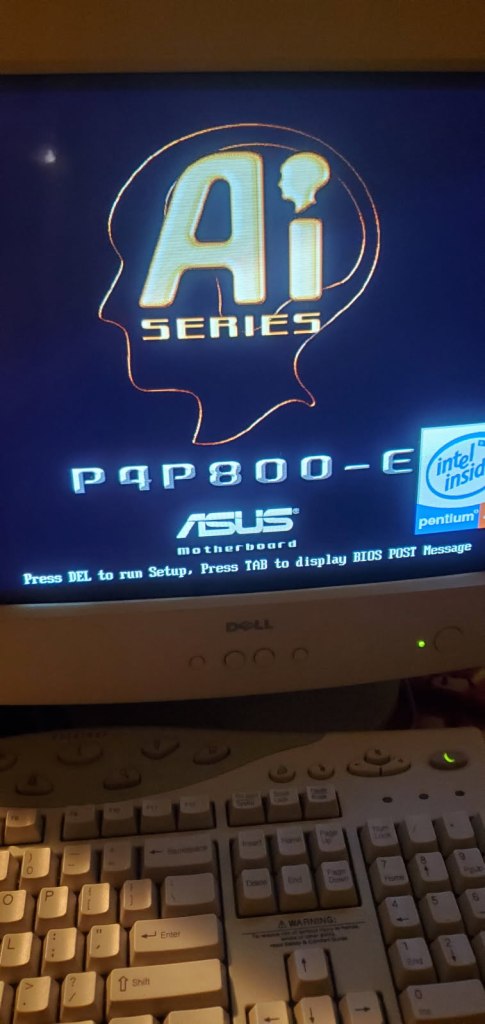
Next, let’s focus on the CPU. With our MOBO, Pentium 4 is the only way to go. For mine, I’m running a 3.2 GHz Northwood model. Do not, do NOT, run the Prescott model – these run extremely hot!
The rest of the specs are as follows:
- 1 GB DDR-RAM (I wouldn’t go any higher than this, even with a RAM patcher)
- Radeon 8500 64MB GPU (you can run something like a 9800 pro, but there are compatibility issues to consider)
- SoundBlaster Audigy 2 Soundcard for EAX games and cool, MIDI SoundFonts
- Yamaha YMF-744 for true, OPL3 FM Synthesis for DOS games
- SATA HDD (12000 RPM’s, although you can get an even faster one if you look)
- Generic DVD-RW (Windows 98 does NOT have support for DVD’s, but CD’s work fine)
- 400W PSU (more than enough juice)
Adjusting MOBO Settings
As far as MOBO settings, I recommend making the following tweaks:
- Set the AGP Aperture Size to match the memory on your GPU (mine’s 64 MB). I’ve heard setting this to over 128MB can cause issues, but I have yet to test that claim
- Make sure IDE Compatibility is off
- Set Plug n’ Play OS to “On” (or else sound card drivers will not install)
- Overclock anything if you wish, but I personally don’t because I like to be nice to my old hardware
- Keep USB support and LAN support on, but disable everything else because your Soundcards are going to need the IRQ slots
- Make sure your CD-ROM drive is first in your boot order so you can install Windows 98 SE from CD
Prepping your drive and installing Windows 98
After that’s set, I HIGHLY recommend getting Gparted Bootable for i386 machines. You can either burn the .iso image to disc or use something like Fedora Media Writer to create a bootable flash drive. Once that’s set, boot into Gparted and create one FAT32 partition (and I mean ONE because if you create more than one, Windows will assign the D: drive letter to one of your partitions and your CD drive won’t function in Windows anymore) that doesn’t exceed 128MB in size (Windows 98 doesn’t tend to play nice with larger partitions).
Tweaks, Drivers and Updates
Once you’ve got that done, boot into the Windows 98 SE setup and install Windows 98 to your newly minted partition. Once it’s installed and Windows 98 is running, do the following:
- Backup your registry
- Edit your Virtual Memory Settings (Right-click “My Computer” -> Properties -> Virtual Memory -> Check “Let me specify my own virtual memory settings”). A decent rule of thumb is to set the min and max to 1.5x-2x your physical RAM, but I have 1 GB in my machine, so I set mine to 512MB and 1024MB, respectively. Anything more seems excessive
- From there, go to Device Manager, right-click your CD-ROM drive and select “Properties”. Make sure the DMA box is checked
- Do the same for your HDD
Next, install drivers and updates:
- Install your MOBO drivers first (the only thing useful on my disc was the LAN drivers)
- Install your GPU drivers
- Install your Soundcard drivers – I installed my Audigy 2 drivers first, then my YMF-744 Drivers
- Install NUSB in order to get USB 2.0 support, because 1.0 is dreadfully slow and practically worthless
- Install Loew’s RAM Patcher ONLY if you’re experiencing strange instability or getting “Out of Memory” errors
- Install the official Microsoft updates from the Windows Security Updates 2004 CD
- Avoid the Unofficial Service Pack 3 update like the plague – it slows down your system and causes a tremendous amount of instability
- Install DirectX 9.0c
You’re pretty much setup at this point, but there are some additional tweaks you can make to really make Windows 98 shine.
DOS Boot Menu
Open MSDOS.SYS and either modify the following lines or add them:
[OPTIONS]
BootMulti=1
BootGUI=0
BootMenu=1
BootMenuDelay=10
Now on Startup, a DOS menu will appear that will allow you to choose whether you want to boot into Windows 98, or if you’d prefer to boot into DOS.
Copy and Use FreeDOS tools
A lot of FreeDOS tools are actually quite a bit better than the old tools that come with DOS. I’d highly recommend downloading FreeDOS and copying over the tools to your HDD. After doing that, add the tools folder to your system PATH. To do so, open AUTOEXEC.BAT and edit your PATH variable:
PATH=C:\WINDOWS;C:\WINDOWS\COMMAND;C:\FreeDOS\Path-to-ToolsWhere “Path-to-Tools” is wherever you stored the tools. Of course, your PATH variable might contain additional paths and won’t look exactly like above, but you get the gist. So what will this do? Now you’ll be able to open a DOS prompt, or boot into DOS, and simply enter the tool name as a command without having to type the path every. single. time. Quite handy!
CONFIG.SYS Tweaks
You should, for better DOS compatibility and Windows memory management, make the following tweaks to CONFIG.SYS:
[WIN98]
DOS=HIGH,UMB
DEVICE=C:\FreeDOS\Path-To-Tools\HIMEMEX.EXE
DEVICE=C:\WINDOWS\EMM386.EXE

[DOS]
DOS=HIGH,UMB
DEVICE=C:\FreeDOS\Path-To-Tools\HIMEMEX.EXE
Optionally, you can edit the DOS section to include EMM386 if you run into problems. Just add “RAM”, without quotes, at the end of the line. You can also add “NOEMS” to the EMM386 line under the Win98 tag, but I’ve personally never needed it.
The End?
It’s not really the end, only the beginning! Let me know your thoughts below and don’t be afraid to post any issues and/or questions. I also want to hear your success stories and even some of the cool games and apps you get running! And if you’re really feeling bold, why not dual-boot a Linux OS? The GRUB bootloader generally makes this a breeze!
 Bytes and Beliefs
Leave a comment